


Backups protect radio-account databases, configuration and media files, and let you move accounts to another server. A full backup includes media files. Quick backup includes databases and configuration without media, so it needs less space and finishes sooner. Each archive is independently restorable; these are not incremental backups.
The server needs free disk space to create an archive before uploading it. Allow space for the account’s files and databases plus the configured free-space reserve. Quick backups are useful when there is not enough room for another copy of the media library.
Local backups and account schedules
Open Broadcaster accounts and click an account’s disk-shaped Backup button.
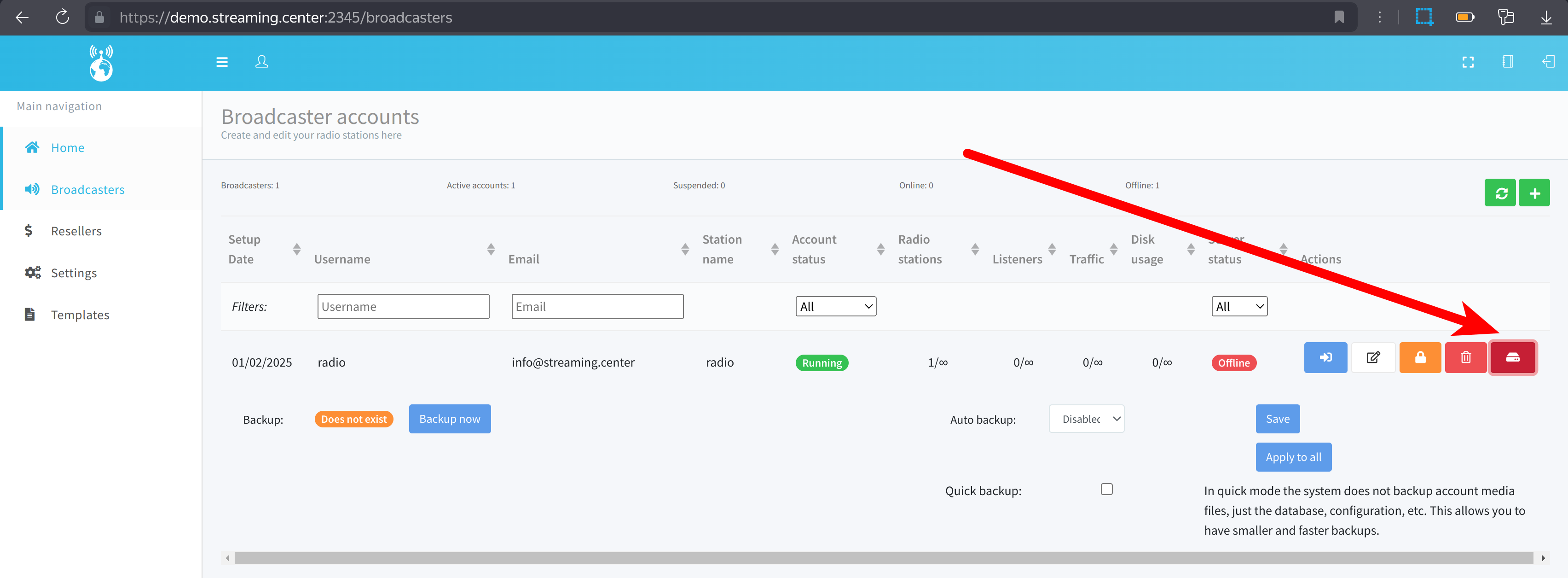
You can:
- Click Backup now to request a backup on the next server pass.
- Set Auto backup to Daily or Weekly, choose the time or weekday, and click Save.
- Enable Quick backup to exclude media files.
- Use Apply to all to apply the local backup schedule/settings to all accounts you manage.
Local archives are stored as /var/users/backup/<username>.tar.gz. A new successful backup takes the place of that account’s local archive. If it is available, the account’s backup controls show its path and a download button.
Server-wide settings and remote storage management are at Settings → Backup & restore (/settings/backup), available to administrators. This page has three tabs:
- Backup: storages, server defaults, backup copies and remote-copy warnings.
- Restore: restore missing accounts, bulk restore and request history.
- Log: operation results and error details. It initially shows the latest backup cycle; use the filters to inspect earlier work.
Local retention matters: Keep the local copy after a verified upload is off by default. With remote backups enabled, the server can remove an account’s local archive after every storage due for that archive has a verified copy. Enable this setting if you also need the archive on the server. Failed, disabled or removed storages with an outstanding copy keep the local archive available. Without remote uploads, local backups remain in the backup directory.
Run backups from the server console
Connect as root and use the platform’s Python environment. Run scheduled work:
/opt/venv/sc/bin/python /opt/bin/sc_backupForce a backup of all eligible broadcaster accounts:
/opt/venv/sc/bin/python /opt/bin/sc_backup allForce quick backups instead:
/opt/venv/sc/bin/python /opt/bin/sc_backup all quickThe normal worker also processes remote uploads, scans, restore requests and downloads. Installation configures this line in /etc/crontab:
*/15 * * * * root /opt/venv/sc/bin/python /opt/bin/sc_backup 1>/dev/null 2>/dev/nullQueued work starts on a server pass, which can be delayed by a backup already in progress. Only one backup worker runs at a time. Use the console command to see output when troubleshooting.
Remote backups
Remote backups copy each account archive to one or more off-server storages. Due uploads run in parallel. The server checks the local archive before upload, verifies the uploaded size and compares a supported common checksum when available. Each storage has its own schedule, retention policy, bandwidth cap and health status.
If a remote upload fails, a successful local backup still shows Done, with a remote-copy warning. The local archive stays available for retry. Health alerts, repeated failures and upload warnings are recorded in the panel and can be emailed.
Requirements and email
Install or update the platform on the server. The installer/updater installs the supported rclone release and the required backup utilities; you do not need a system-wide rclone configuration file. Allow outbound connections to the chosen storage.
Backup warning and ready-download emails use the [Mail] section of /opt/bin/utils.ini: SMTP_SERVER, SMTP_USER, SMTP_PASSWORD, SMTP_FROM and recipient SMTP_TO. The worker uses authenticated SMTP with STARTTLS on port 587. Check these server settings if messages do not arrive; panel results remain available without email.
Server defaults
In the Backup tab, find Server defaults and click Save after changing settings.
| Setting | What it controls |
|---|---|
| Default backup settings for new broadcasters | Auto-backup schedule, time/weekday and Quick backup copied to new accounts. Existing accounts keep their settings. |
| Enable remote backups for new accounts | Starts new accounts with remote backups enabled. Also mark the intended storages Default for new accounts. Off by default. |
| Keep the local copy after a verified upload | Retains the local archive after all due uploads are verified. Off by default. |
| Total upload limit (Mbit/s) | Shared evenly between the storages uploading one account in parallel, subject to each storage’s cap. Empty or 0 means unlimited. |
| Minimum free disk space | Reserve remaining after an estimated backup or a prepared download. Default: 1000 MB. Choose MB or a percentage of the filesystem; percentages can be 0–90. |
| Pause between accounts (seconds) | Delay between account backups. Default: 0. |
| Auto-disable a storage after failed cycles | Stops new uploads after repeated failed cycles. Default: 5; 0 disables this safeguard. |
Add a storage and choose its policy
- In Storages, click Add storage. A large dialog opens.
- Choose Type, enter a unique Name and a Base path, then fill in the provider fields described below. The base path is a folder inside the storage, normally
sc_backups, without a leading slash or..components. - Set Retention mode:
- Days: Keep for (days); 0 keeps copies forever.
- Counts: Keep daily, Keep weekly and Keep monthly. The server keeps the newest copy from each of the last N days, ISO weeks and months that contain backups. The combined selection is kept; at least one count must be positive.
- Choose Frequency: Every backup, Daily or Weekly. Daily/weekly copies are due based on the last verified copy, with a one-hour tolerance. This limits remote copies; it does not create local backups independently of the account schedule.
- Optionally set Cap in Mbit/s and Default for new accounts.
- Click Test connection, check the result, then Save.
Retention runs after successful uploads in that account’s storage folder. It always protects the newest verified copy and the just-uploaded copy. Drive deletions bypass Trash and B2 uses hard deletion; provider object locks or versioning can still retain data.
Use Edit to change credentials or operational settings. Saved secrets are not displayed; leave them empty to retain them or click Replace to supply new values. Type, base path and physical location fields are locked after creation. Create another storage if you need a different bucket, host/login or Drive folder.
Select storages for an account
Adding a storage does not enable uploads for every existing account automatically.
- Open the account’s Backup controls on Broadcaster accounts.
- Under Remote backup, enable Copy this account’s backups to remote storages.
- Select the required Storages.
- Leave Retention override at Inherit, or set a complete Days/Counts policy for this account.
- Click Save remote settings. Ensure the account also has a local backup schedule, or use Backup now.
Remote folders and filenames
Each new archive uses this layout, with its creation time in UTC:
<base path>/<server hostname>/<user>/<user>-YYYY-MM-DD_HH-MM-SS[-quick].tar.gzThe hostname is the server’s configured main hostname, not the storage’s display name. For example, a quick backup can be sc_backups/radio.example.com/station/station-2026-10-17_02-00-00-quick.tar.gz. Compact timestamp names such as station-20261017T020000Z.tar.gz are also recognized. Keep the folders and filenames intact so Scan and restore can find them.
Configure remote storages
All storage types use the common name, base path and policy fields above. Grant the storage credentials permission to list, write, read and delete backup objects. Credentials and pasted tokens are secret: keep them out of support messages and screenshots.
S3-compatible
-
Create a bucket in your provider’s console and create S3 credentials with access to it.
-
Select S3-compatible. Fill in:
Field Value Provider Amazon Web Services (AWS) S3, Ceph Object Storage, Minio Object Storage, Wasabi Object Storage, DigitalOcean Spaces, Cloudflare R2, or Other S3-compatible. Choose Other if your provider is not listed. Endpoint The provider’s S3 endpoint, beginning with https://, for examplehttps://s3.example.com. Use the API endpoint, not the bucket’s website address.Region Pre-filled with default, accepted by many compatible services. Use the exact region from your provider when required, for exampleus-east-1.Bucket The name of the existing bucket. ACL Leave empty to keep backups private unless your provider requires a specific ACL. Storage class Leave empty for the standard class, or use a supported class from your provider. Access key ID, Secret access key The pair from your provider’s S3 credentials page. -
Test the connection and save.
Backblaze B2
- In the Backblaze console, create a B2 bucket and an application key with access to that bucket, including list/read/write/delete permissions.
- Select Backblaze B2 and enter Bucket.
- In the field labelled Account ID, enter the key’s applicationKeyId when using an application key. Enter its secret in Application key. The master account ID belongs with a master key, not a restricted application key. See rclone’s B2 credential guidance .
- Test and save. Store the key securely when Backblaze first displays it.
SFTP
-
Prepare an SFTP account with access to the backup directory.
-
Select SFTP and enter Host, Port (22 if empty) and User. Enter Password or paste the complete Private key (PEM); at least one is needed.
-
Obtain the server’s host keys from a trusted machine:
ssh-keyscan sftp.example.com # For a custom SSH port: ssh-keyscan -p 2222 sftp.example.com -
Verify the fingerprints with the SFTP server administrator through a trusted channel. Paste all applicable output lines into Host key (known_hosts). Hashed entries from a trusted
known_hostsfile also work. Paste the text, not a filename. -
Test and save. If a host-key check fails, verify the server’s identity before updating these lines; do not disable the check.
FTP and FTPS
- Select FTP and enter Host, User and Password from your FTP provider.
- Choose Encryption:
- Automatic (recommended) tests Explicit FTPS, Implicit FTPS and Plain FTP, saving the first mode that logs in and its port.
- Explicit FTPS uses AUTH TLS, normally on port 21.
- Implicit FTPS starts TLS immediately, normally on port 990.
- Plain FTP sends the password and archives unencrypted. Use it only on a trusted network; the list marks it Unencrypted.
- Set Port, or leave it empty for the selected mode’s default. Automatic tries explicit TLS on the supplied/default port, implicit TLS on the supplied port or 990, then plain FTP on 21. If you require encrypted transport, choose a TLS mode explicitly.
- Test and save. Certificate failures need a valid certificate matching the host; do not work around them by selecting Plain FTP on an untrusted network.
Google Drive
Select Google Drive. For interactive authorization choose Authentication → OAuth token. Root folder ID is optional: open the intended folder in Google Drive and copy the ID after /folders/ in its URL, or leave empty to use the root. Base path is created below this location.
Connect with your own Google app
-
In Google Cloud Console , create or select a project. Under APIs & Services → Library, enable Google Drive API.
-
Configure Google Auth platform → Branding with the app name and contact details. Under Audience, choose Internal for users within your Workspace organization, or External for other Google accounts. For External, publish the app to In production: Testing refresh tokens for Drive expire after seven days. See Google’s consent setup and publishing rules .
-
In Data Access, add
https://www.googleapis.com/auth/drivefor backup read/write access. -
In Clients → Create client, choose Web application. Add the exact Redirect URI shown in the storage form under Authorized redirect URIs, including port and trailing slash. It has this format:
https://<panel hostname>:<admin panel port>/api/v1/backup_oauth/callback/ -
Copy the new client ID and secret into OAuth client ID and OAuth client secret in the panel. See Google’s Web application client instructions .
-
Click Connect Google Drive and approve access. If Google warns that your own app is unverified, check the app/project identity, then use Advanced → Go to … if offered. Organization policy may require your Workspace administrator’s approval.
-
Wait for Connected ✓, then click Test connection and Save.
The callback can close the popup automatically. You can close it manually after authorization; the form also checks the result by polling. If blocked, use Open authorization page. Finish and save within ten minutes. Editing a storage can keep its saved token or use Reconnect. Changing the app credentials or scope requires connecting again.
Scope is under Advanced. Leave it empty for full Drive access. Change it only when you deliberately authorize a matching scope; read-only scopes cannot upload backups. For manual authorization, follow Paste an rclone token .
Service account with a Shared Drive
Service accounts have no storage quota of their own, so this mode requires a Google Workspace Shared Drive.
- In Google Cloud Console, enable the Drive API for your project. Under IAM & Admin → Service Accounts, create a service account.
- Open the service account’s Keys tab and choose Add key → Create new key → JSON. Download the file. See Google’s key instructions .
- Open the Shared Drive in Google Drive. Its ID is the last part of its URL. Add the service account’s email address from the JSON (
client_email) as Content manager. - In the panel choose Authentication → Service account (Shared Drive). Paste the entire downloaded file into Service account key (JSON); enter Shared Drive ID and, optionally, Root folder ID for a folder within that drive.
- Test and save. Paste JSON text, not a path to a key file. The key can be replaced later, while Shared Drive ID and Root folder ID are locked.
Service-account keys do not expire by default, unlike Testing-mode OAuth grants; an organization can impose a key-expiry policy. Keep the key private and replace/revoke it when rotating credentials. A storage uses either an OAuth token or a service-account key.
Dropbox
Select Dropbox. Give each Dropbox storage a different Base path, including storages for different Dropbox accounts.
Connect with your own Dropbox app
- Open the Dropbox App Console and create an app. Choose Scoped access, then App folder or Full Dropbox and an app name. App folder confines backups to that app’s folder; Full Dropbox can access the account’s folders. See Dropbox’s access guide .
- Before connecting, open Permissions, enable
files.metadata.read,files.content.readandfiles.content.write, then submit the changes. - Under Settings → OAuth 2 → Redirect URIs, add the exact Redirect URI from the panel form, including port and trailing slash. Use the same panel callback format shown for Google above.
- Copy App key into OAuth client ID, and App secret into OAuth client secret.
- Click Connect Dropbox, sign in and approve. The panel requests offline access so uploads can refresh credentials without another login.
- After Connected ✓, use Test connection and Save. You can close a finished popup manually; Open authorization page handles a blocked popup. Use Reconnect to replace a saved token.
You can also authorize on another computer and paste a token as described next. If app permissions change, authorize again to grant the new permissions.
Paste an rclone token: Google Drive or Dropbox
This is an alternative to the Connect buttons for either provider.
-
Install rclone on a computer with a browser. Use the same major version as the server; preferably match its release (
rclone versionshows it). -
Run the appropriate command on that computer:
rclone authorize "drive" # Or, for Dropbox: rclone authorize "dropbox" -
To use your own OAuth app instead, supply its client ID and secret:
rclone authorize "drive" "<client_id>" "<client_secret>"
# Or, for Dropbox:
rclone authorize "dropbox" "<client_id>" "<client_secret>"
For a custom Google client used by this command, create a Desktop app client in the same project; the panel’s Connect button uses a Web application client instead. Apply the consent/publishing settings above. Using your own Google client avoids dependence on rclone’s shared app, which is being retired. For a custom Dropbox app, also register the local redirect URI requested by rclone, normally
http://localhost:53682/. See rclone’s Drive guidance and Dropbox guidance . -
Follow the browser authorization. Local port 53682 must be free on the computer running rclone. If the browser does not open, use the local link printed by rclone on that same computer.
-
Copy only the complete JSON token printed after authorization, including
{and}. In the panel open Advanced and paste it into Token. For Drive, keep Authentication → OAuth token selected. -
If you used your own app, enter the same ID/secret pair in OAuth client ID and OAuth client secret. Otherwise leave both empty. Test and save.
A headless server does not need a browser: run rclone authorize on another computer and transfer the token to the form. This command uses a local browser callback, separate from the panel callback. See rclone authorize
and headless setup
.
Test connections, health and failed uploads
Test connection in Add/Edit tests the current unsaved fields, retaining saved secrets left empty on edit. It writes, reads and deletes a small probe. Test in the storage list tests the saved configuration and updates its health badge.
- Not checked means no health result is recorded yet.
- Healthy means a successful relevant check is recorded.
- An error badge shows a classified reason, detail and last-checked time. A successful read does not clear a write/delete error; run a full Test after fixing access. The server also performs periodic read checks, approximately hourly during worker passes.
| Error reason | What to check |
|---|---|
| Authentication | Replace an invalid password/key, reconnect OAuth, check Google publishing status or service-account access. |
| Access denied | Grant list/read/write/delete access to the bucket/folder and the Dropbox app permissions or Shared Drive role. |
| Connection | Check host, port, DNS, firewall and network access from the server. |
| TLS or certificate | Check the certificate name, validity/trust chain and chosen FTP encryption mode. |
| Host key | Verify the SFTP server fingerprint and paste complete matching known-hosts lines. |
| Not found | Check that the bucket, Drive folder ID and base path exist. |
| Quota | Free space or raise the provider’s quota. |
Inspect Log and the account’s warning for details. A missing or mismatched individual backup copy can appear as an operation warning without changing the storage health badge. If uploads failed and the local archive is still present, click Retry remote copy on the account or failed storage result. The next worker pass uploads that kept archive under its original name; it does not make a fresh backup.
A storage is automatically disabled after the configured number of consecutive attempted cycles without a successful upload/retry. Probes and idle cycles do not count. The page shows Storages disabled automatically. Fix access, run Test, then click Re-enable; this clears the failure counter. A successful Test alone does not re-enable it.
Restore and download
Remote restore only creates accounts that do not already exist on this server. It does not overwrite existing accounts. Check station/DJ/Icecast/Shoutcast port assignments before migration: the same ports might already belong to another account on the destination.
Restore trusts the stored archive. Use backups from storages you control and allow enough local space for downloading and extracting them.
Restore one account from remote storage
- Add the storage containing the backup files and test its connection.
- If its copies are not yet in the list, click Scan in the Backup tab. Reconciliation runs on the next server pass; it recognizes copies from source-host folders.
- Open Restore → Backup copies of missing accounts, select the required copy and review the Restore wizard.
- Click Start restore and follow Progress and Restore request history through Pending, Downloading, Restoring and Done, or read the failure message.
Both Verified and Discovered copies can be restored. Guided restore keeps an archived owner only when the source hostname matches this server and that administrator/reseller exists here; otherwise ownership is unassigned. Check ownership and configure remote-backup selection after restoration.
Bulk restore
- In the Restore tab, open Bulk restore.
- Choose Storage and Host. Hosts are read directly from the storage; Scan is not required.
- Click Preview. The newest valid copy for each account is selected, preferring full over quick at the same time. Existing/busy accounts and invalid backups are skipped with reasons.
- Review the selection and click Confirm. Changed or missing files are skipped rather than substituted. Requests run one at a time; Batch progress shows each result.
Download a remote copy
In Backup → Backup copies, find a Verified or Discovered copy and click Prepare download. After the next server pass prepares it, use Download file. The server also emails the ready link to the configured backup-mail recipient. The link works for 48 hours after preparation and is available again when you reload the page.
Anyone with that link can download that one archive until it expires. Prepare again requests another download after failure/expiry if the remote copy is still available. Prepared downloads use local disk space until cleanup.
Restore a local archive
Copy an archive to /var/users/backup_restore/<username>.tar.gz, for example /var/users/backup_restore/radio.tar.gz. The next backup worker pass restores it if the account is absent. Copy a dated remote archive under this username-only filename when using the drop-in method.
To process just one local drop-in file immediately, run as root:
/opt/venv/sc/bin/python /opt/bin/sc_backup restore radioReplace radio with the username. This skips scheduled backup creation and selects that local file; queued remote restore/download work can also run. A run without arguments processes all eligible drop-in archives as part of normal work. Inspect console output and the account’s status/message if restoration fails.
Remove or disable a storage
Click Delete in Storages. The confirmation first shows linked account names, the total account count and the number of backup copies. Deleting:
- Removes that storage from the linked accounts.
- Removes its backup copies from the restore list and their finished restore/download request history.
- Keeps operation logs with the storage name.
- Keeps all files on the remote storage. Delete those manually in the provider if you want to free the space.
A pending/running restore or download from that storage blocks deletion, including bulk restore members. A prepared download also blocks until its 48-hour link expires. The dialog displays the reason; try again after the work finishes. An upload already in flight may still leave a file on the remote storage.
Use Disable instead if you want to stop new uploads while keeping storage configuration and catalog entries. Re-enable it when ready. Disabled storages can leave account copy obligations outstanding, so their local archives can remain on disk.
Migration to a new server
Use full backups when you need media as well as settings. Plan a cutover so changes made on the old server after the final backup are not lost.
On the old server:
-
If transferring local files, enable Keep the local copy after a verified upload first so remote success does not remove them.
-
Create final full backups:
/opt/venv/sc/bin/python /opt/bin/sc_backup all -
Confirm that the required local files or verified remote copies exist. Copy local archives securely to the new server, or retain the storage credentials needed for remote restore.
On the new server:
-
Install the platform . You can initially use its new hostname/IP and configure the final hostname and TLS during cutover.
-
For remote migration, add the same storage and use Bulk restore with the old server’s Host. Remote Bulk restore through the panel needs no cron changes: guided restore locks the account name while recreating it and excludes concurrent content indexing. Skip the local-file steps below if using this method.
-
For a mass local restore, before copying archives, temporarily comment out the
sc_backup,sc_accounts,sc_statsandawstatslines in/etc/crontab. With the current installation paths, the commented entries look like this:# */15 * * * * root /opt/venv/sc/bin/python /opt/bin/sc_backup 1>/dev/null 2>/dev/null # */1 * * * * root /opt/venv/sc/bin/python /opt/bin/sc_accounts 1>/dev/null 2>/dev/null # */1 * * * * root /opt/venv/sc/bin/python /opt/bin/sc_stats 1>/dev/null 2>/dev/null # 0 * * * * root /opt/venv/sc/bin/python /opt/bin/awstats 1>/dev/null 2>/dev/nullLet any already-running backup, provisioning or statistics jobs finish before copying the archives. Leave
content_indexerenabled: it respects the restore barrier and skips work during the destructive restore step. The certificate-renewal (letsencrypt renew) entry can also stay enabled. -
Copy
<username>.tar.gzfiles into/var/users/backup_restore/, then run the backup worker manually as root:/opt/venv/sc/bin/python /opt/bin/sc_backup -
Check restored accounts, ownership, media and ports.
-
If moving the domain, update its DNS records to the new server. Configure the hostname and TLS with the server utilities :
cd /opt/bin ./change_host ./ssl_enable -
Run the update script , then uncomment all four cron entries paused for the local restore:
sc_backup,sc_accounts,sc_statsandawstats. Confirm that they use/opt/venv/sc/bin/python. Configure remote settings on the new server and verify a fresh backup before retiring the old server.
Transfer account templates (optional)
Account archives do not include the panel’s broadcaster/reseller templates. To transfer them, dump the corresponding tables separately on the old server and import them on the new one. This imports template definitions, so back up any destination templates first.
The example uses the default billing database sc_billing and MySQL administrator root. Check [Billing] BILLING_DB_NAME and [MySQL] SU_NAME in /opt/bin/utils.ini and substitute your actual values. -p prompts for that server’s MySQL administrator password ([MySQL] SU_PASSWD); do not put the password in the command.
On the old server:
mysqldump -u root -p sc_billing templates_broadcaster > templates_broadcaster.sql
mysqldump -u root -p sc_billing templates_reseller > templates_reseller.sql
Copy the SQL files securely, then import them on the new server:
mysql -u root -p sc_billing < templates_broadcaster.sql
mysql -u root -p sc_billing < templates_reseller.sql
Recheck template settings and account ownership after migration, especially when administrator/reseller accounts differ between servers.