



Streaming to Social Networks
The Social streaming service is provided by Streaming.Center. It relays an existing Internet radio stream to social networks and video platforms. Your radio can be hosted anywhere: it does not need to run on the Streaming.Center radio platform. You only need a publicly accessible direct MP3 or AAC stream URL.
Streaming to social networks and video platforms can expand your audience by making your station available where people already discover, follow and share content. It also allows listeners to enjoy your radio through devices and apps that may not support a traditional radio player—for example, Smart TVs, streaming media players, game consoles, smartphones and tablets. Depending on the destination platform, listeners may also discover your station through recommendations, receive live notifications, share the broadcast and interact through comments or live chat.
The service converts the radio audio to AAC and combines it with a background image or looping video. It can read the current track title from ICY metadata, display the title in the video and automatically find and display the track cover. If a cover cannot be found, the station’s default image is used.
Ready-made presets are available for popular platforms including YouTube, Telegram, Facebook, Instagram, TikTok, Twitch, Mixcloud and X. You can also add any service that accepts a custom RTMP or RTMPS stream and configure its video format manually.
Each new social destination includes a 48-hour free trial. After the trial, each enabled destination is billed daily at its share of the monthly price: $9 per month. You can disable an individual destination at any time to stop its future daily charges, or disable the radio source to pause all its destinations.
Before starting, keep these points in mind:
- Use the direct public radio stream URL provided by Shoutcast/Icecast server, not a station website, web player or playlist page. Authenticated and private source URLs are not supported.
- Track titles and covers require usable ICY track metadata. A station without metadata can still broadcast, but its video will not update with track information.
- Most social platforms require video. You will need a background image or a short looping video unless the selected preset offers audio-only mode.
- Obtain the destination server URL and stream key from the social platform. Stream keys are credentials: do not publish or share them.
- An enabled destination remains billable after its trial even when its source or social platform is temporarily unavailable. Disable it when you do not want it to run.
- Your account balance must remain above zero for streaming to run. At a zero or negative balance, all broadcasts pause until the balance becomes positive.
- Viewers on social platforms are not included in the radio platform’s listener statistics. You can see their audience statistics on the destination platform.
- You are responsible for meeting each platform’s live-streaming, account and music-rights requirements.
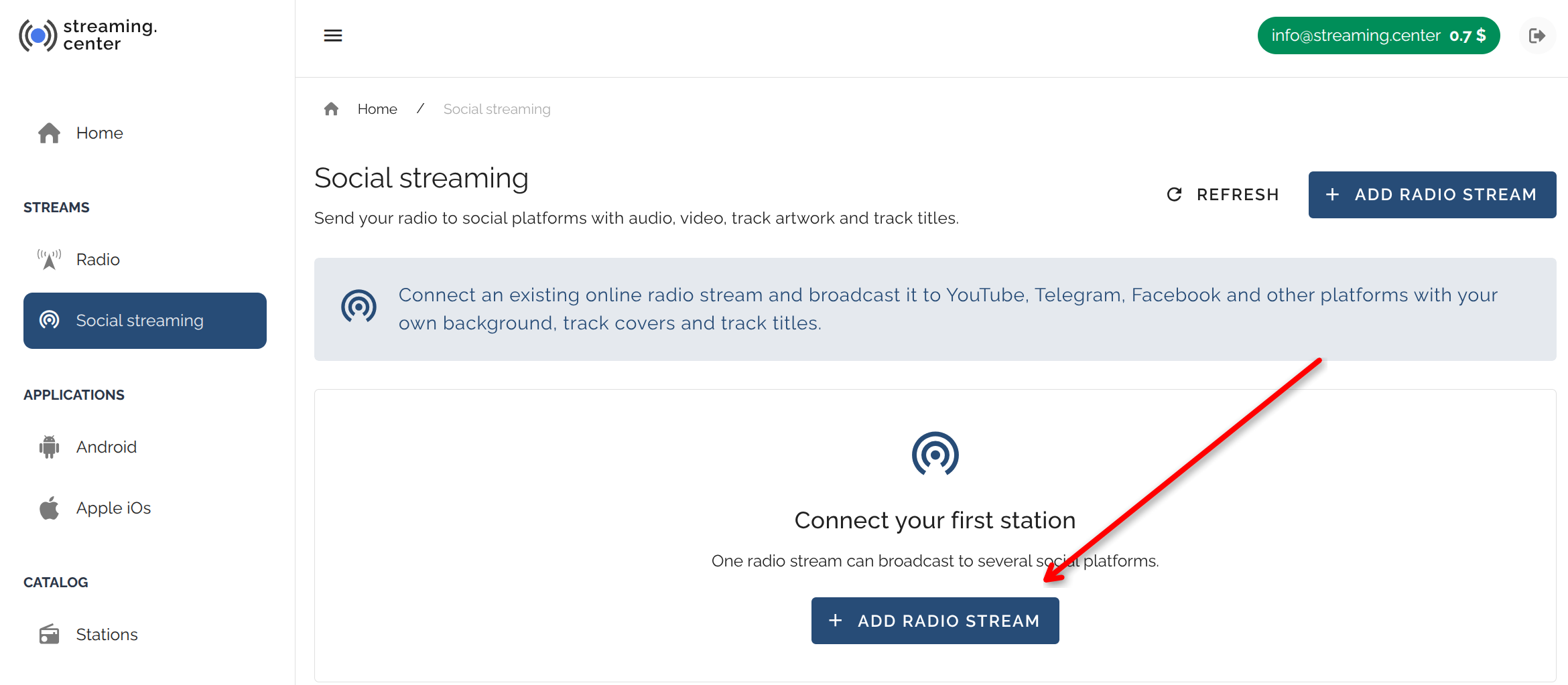
1. Open Social Streaming
Sign in to your Streaming.Center account and select Social streaming in the main menu. The page lists your source radio streams, their social networks, current status and monthly enabled rate.
Click Add radio stream.
2. Add the Source Radio Stream
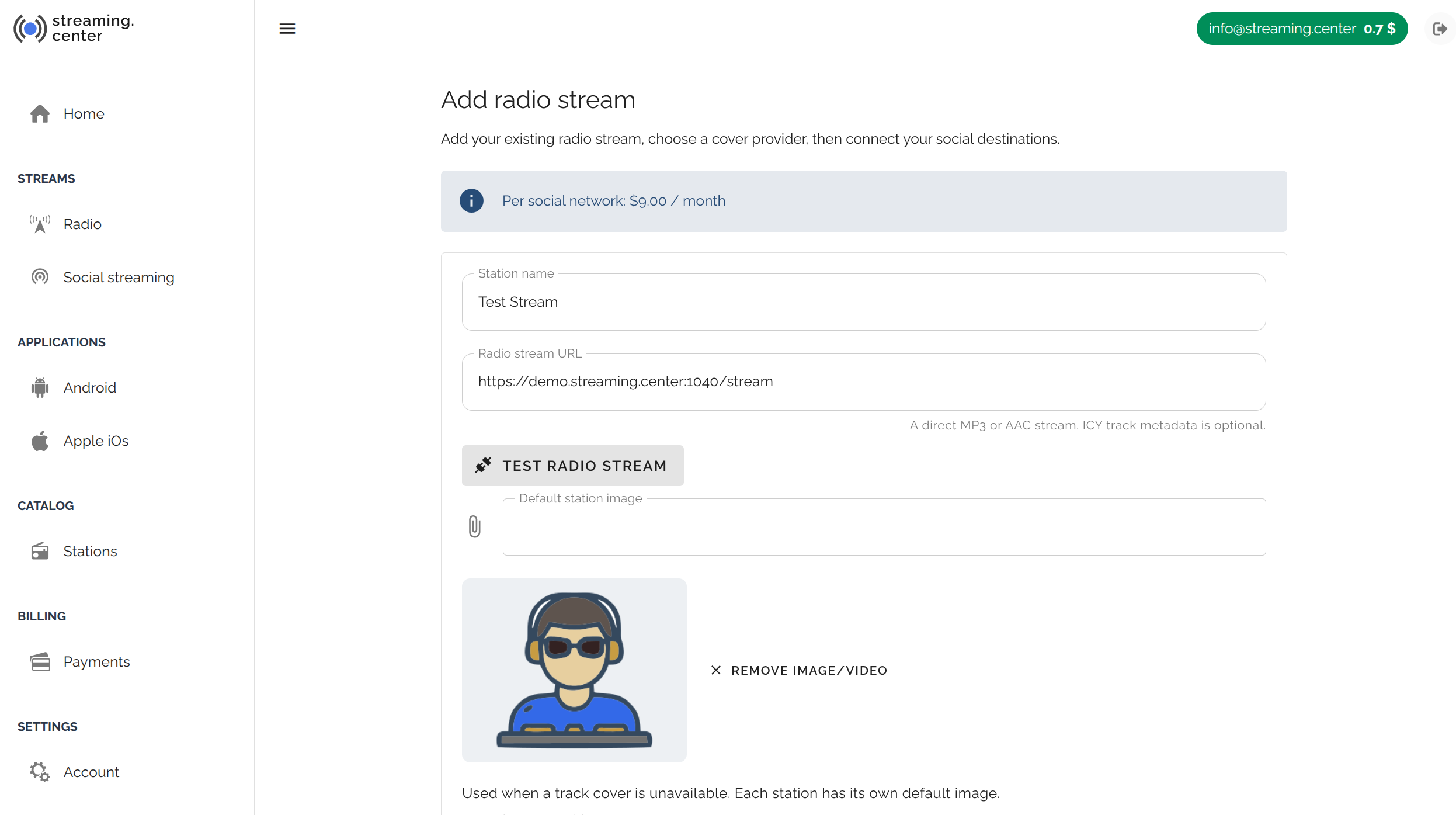
Fill in the source form:
- Enter a recognizable Station name. This name is used only for managing the service and is not shown instead of missing track metadata.
- Paste the direct public Radio stream URL. It must be an HTTP or HTTPS MP3/AAC stream powered by Shoutcast, Icecast or similar HTTP server.
- Click Test radio stream and wait for the successful validation message.
- Upload a Default station image. It is used when the current track has no cover.
- Choose the Track cover provider:
- Streaming.Center service automatically searches for covers.
- My public cover API uses your own public API endpoint to provide the cover art for the current track.
- Click Create draft.
The source is initially saved as disabled. This lets you finish adding destinations and check all settings before broadcasting begins.
3. Add a Social Destination
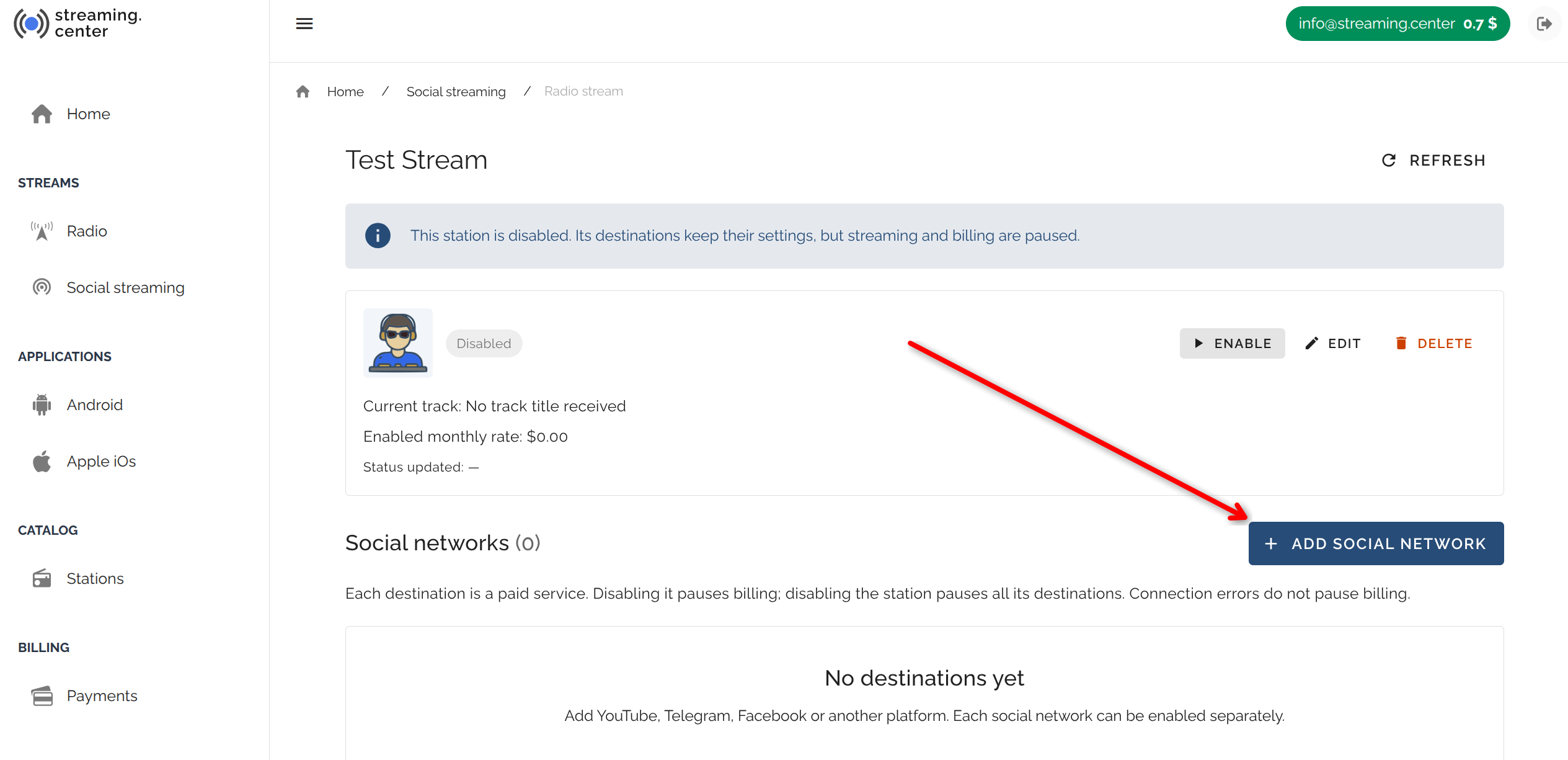
Open the newly created source and click Add destination.
One source radio can have any number of destinations. For example, the same station can stream to YouTube, Telegram and two different channels on another platform. Each destination has its own server URL, stream key, enabled state, trial and billing.
4. Enter the Platform Connection Details
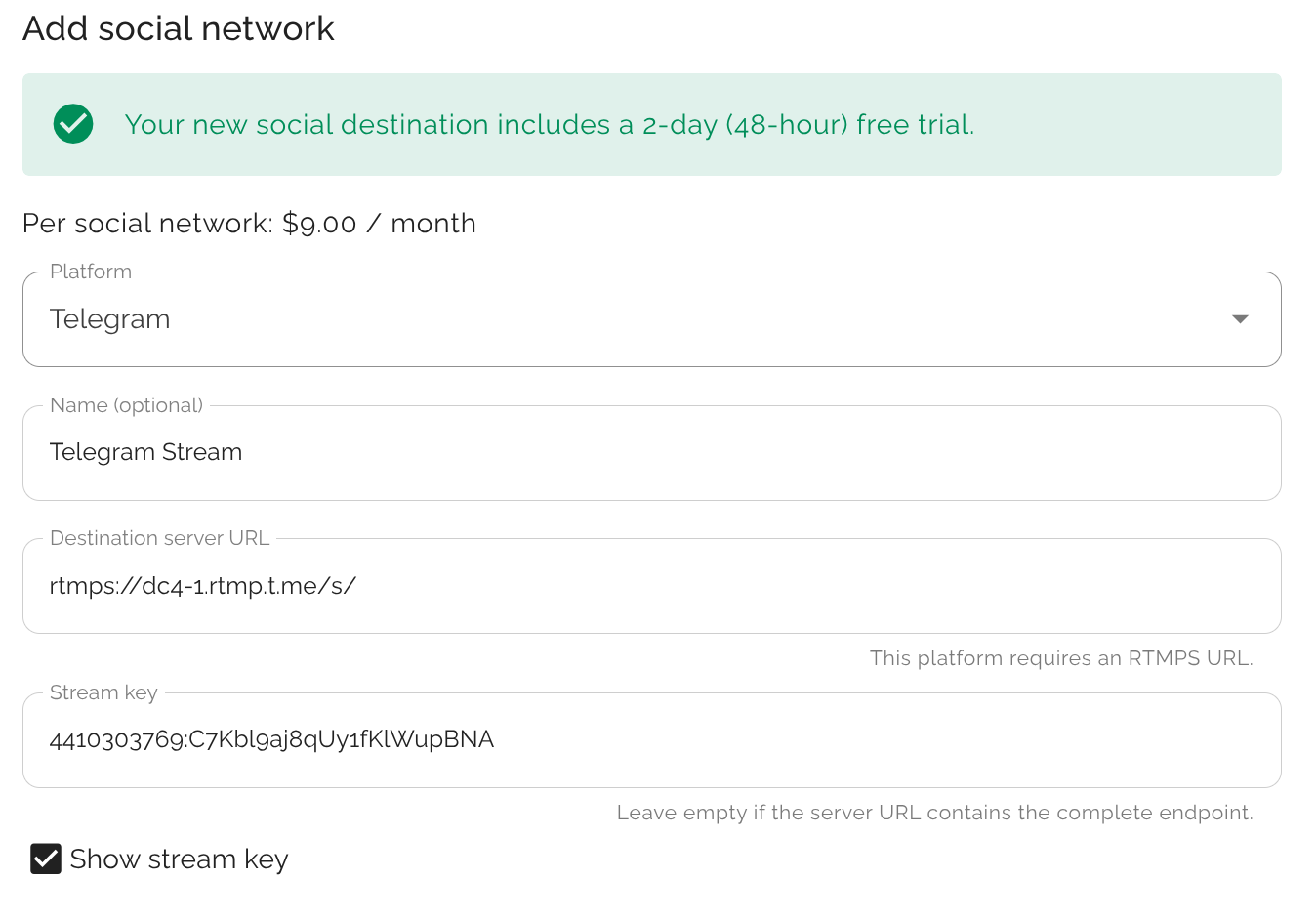
Complete the destination form:
- Select a platform preset, or select Custom RTMP for another compatible service.
- Enter an optional destination name to help identify the channel in your account.
- Copy the Destination server URL from the platform’s live-streaming page. Use the RTMP or RTMPS address exactly as provided.
- Paste the Stream key. You can use Show stream key to verify it. The account normally masks the key because anyone who has it may be able to publish to your channel.
If you need help obtaining a server URL and key, see the platform examples in Streaming Radio to Social Networks . Social platforms can expire or replace stream keys, so update the destination when its key changes.
5. Configure the Background, Cover and Title
If the chosen platform supports Audio only, you can enable it without uploading visual media. In audio-only mode, track cover and title display are disabled.
For a video broadcast:
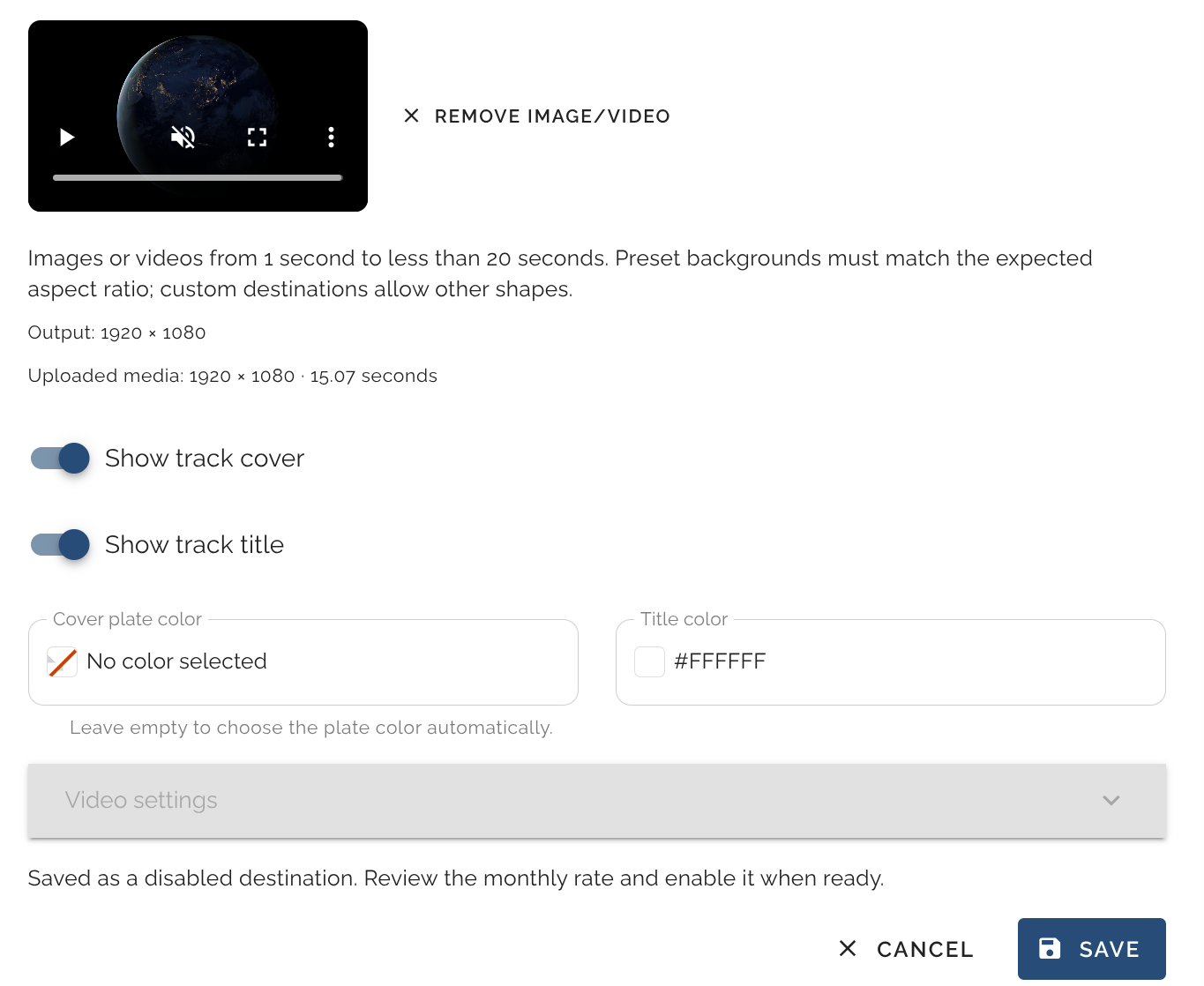
- Upload a Background image or video. A video must be at least 1 second and less than 21 seconds long; it loops continuously. Follow the aspect ratio shown for the selected preset.
- Enable Show track cover to place the automatically found cover over the background.
- Enable Show track title to display the ICY track title.
- Optionally choose the cover-plate and title colours. Leaving the plate colour empty lets the service choose it automatically.
The built-in presets lock the required resolution, bitrate and keyframe settings. With Custom RTMP, you may open Video settings and adjust the output for the destination’s requirements.
6. Save and Start Broadcasting
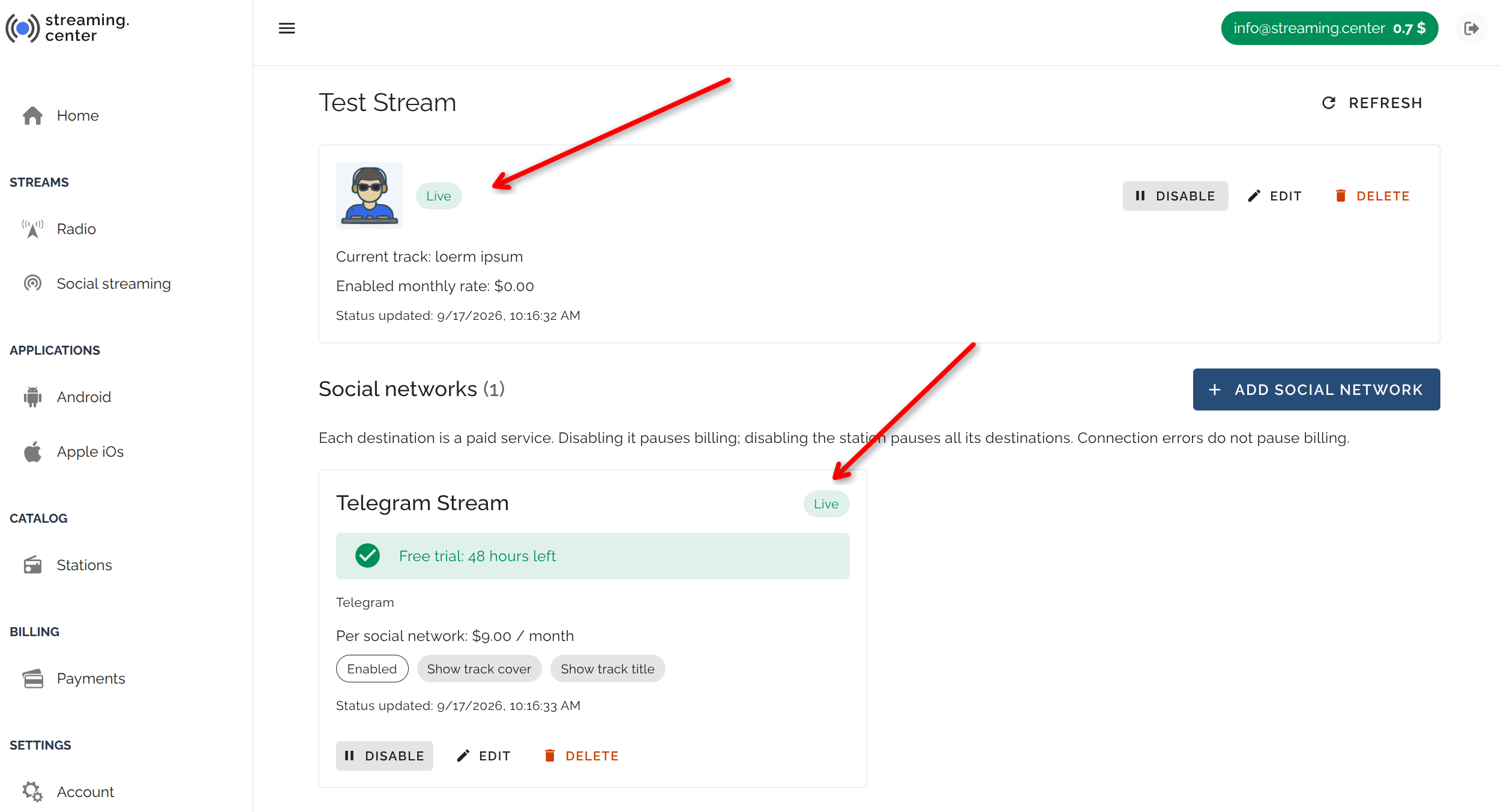
Click Save. A new destination is saved disabled, and its 48-hour trial begins when it is created.
Review the destination, then click Enable on it. Enable the source radio as well. Broadcasting starts when both the source and at least one destination are enabled and the account balance is positive.
The source page refreshes its status automatically. It shows the current track, destination status, remaining trial hours and any connection error. A destination may take a short time to prepare its first video card and connect.
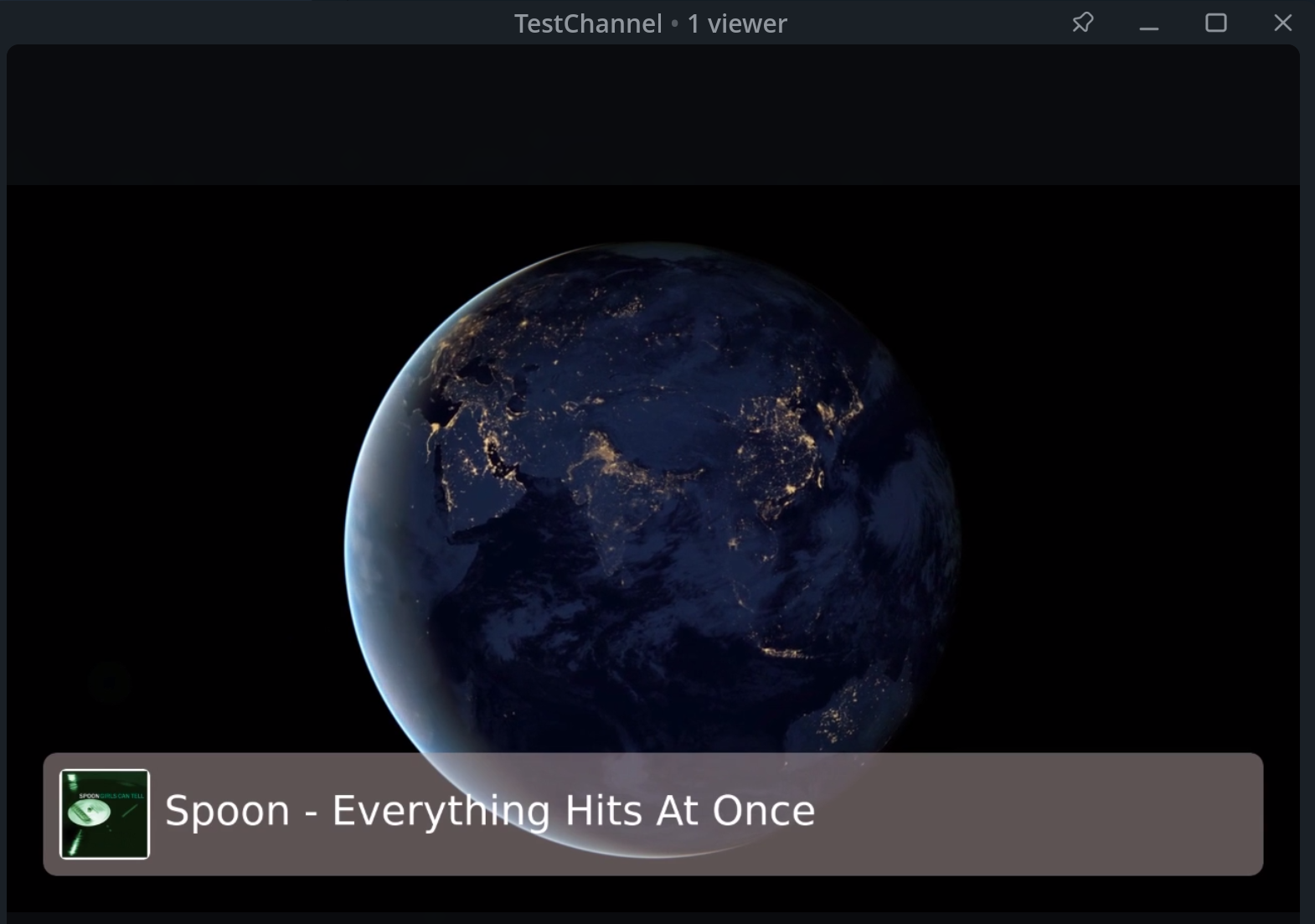
The broadcast will now appear in your Telegram channel or group, displaying the track cover and title on a semi-transparent background in the color you selected:
Managing Costs and Interruptions
Each destination is managed independently. Disabling one pauses that broadcast and its future daily billing without deleting its settings. Disabling the source pauses broadcasting and billing for every destination attached to it while preserving their individual enabled settings.
Connection failures do not automatically suspend billing. If a social platform rejects a key or a radio source is unavailable and you do not want continued charges, disable the affected destination or source while correcting it.
When a source has no decodable audio for more than 10 minutes, its video title changes to Stream is offline. If it remains offline for more than 24 hours, the source and its destinations are disabled automatically. After fixing the radio URL, review the settings and enable them again.