



How to Use Intro Files on Streaming.Center
An intro is a short audio clip that plays automatically for each new listener the moment they connect to your radio stream. Before they hear your current broadcast, they get a personalized welcome — a station ID, a sponsor message, a jingle, or anything you choose.
This guide covers everything available in the Intros section of your control panel.
Getting Started
Navigate to your station’s control panel and open the Intros section. You will see three tabs: Files, Groups, and Schedule.
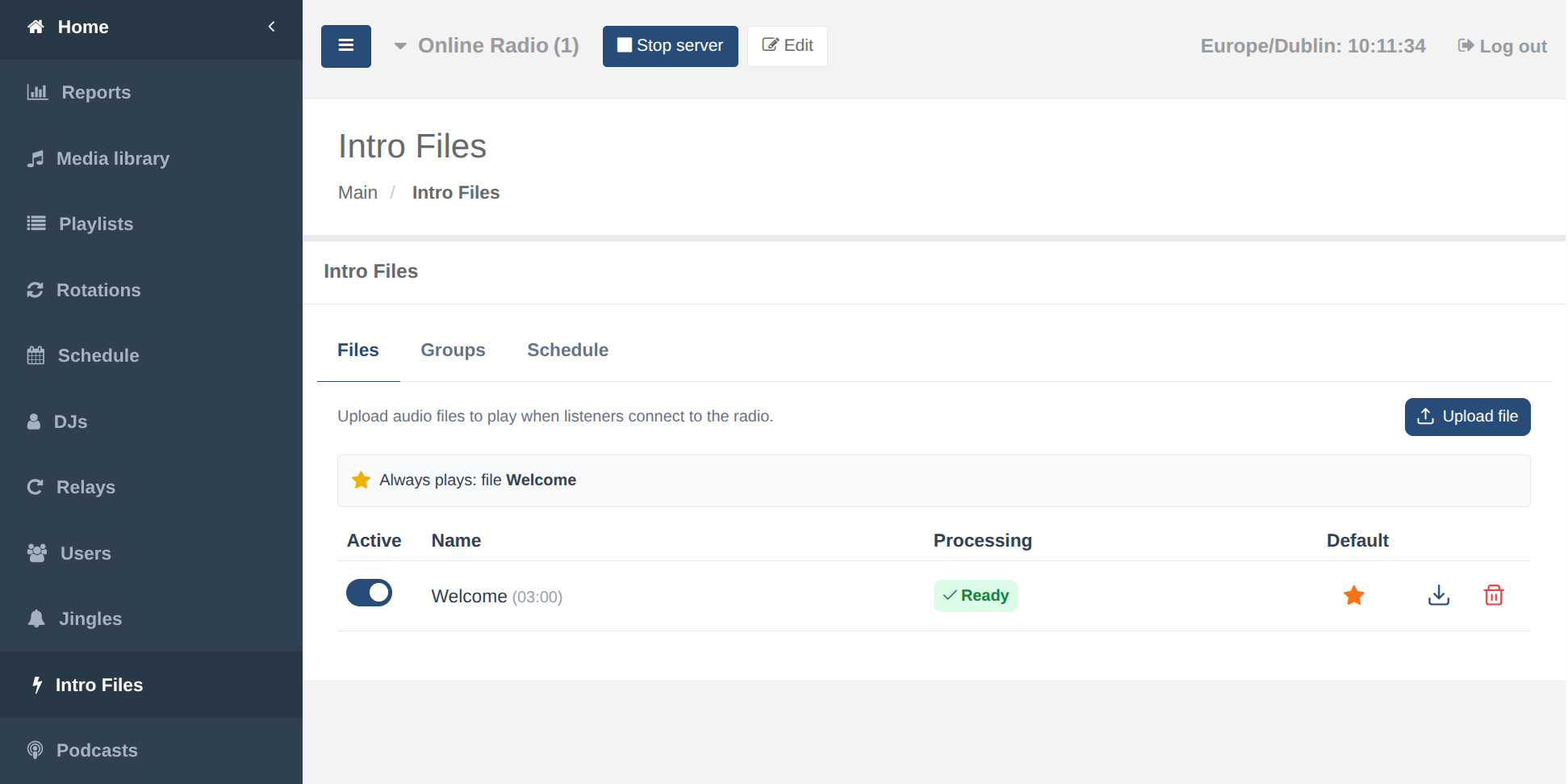
Tab 1: Files
This is where you manage your intro audio files.
Uploading an intro file
- Click Upload File.
- Enter a name for the file (up to 30 characters) — this is just a label for your own reference.
- Select an audio file from your computer. MP3, AAC, FLAC, OGG/Opus and WAV are all accepted.
- Click Upload.
After uploading, the system automatically encodes the file into the correct format and bitrate for each of your channels. While encoding is in progress, the status column shows Processing. Once encoding completes, the status changes to Ready and the intro becomes active.
Enabling and disabling files
Each file has a toggle switch in the leftmost column. Turning a file off prevents it from being used — both as the default and in any schedule slot — without deleting it.
Setting the default intro
The default intro is the file that plays for listeners at all times when no timed schedule slot is active. To set a file as the default, click the star icon (☆) next to it. The star fills in (★) to indicate it is now the default. Clicking a filled star removes the default designation.
Only one file or one group can be the default at a time. Setting a new file as default automatically clears any previously set default file or group.
Downloading and deleting files
- The download icon on each row lets you download the original uploaded file.
- The trash icon permanently deletes the file and removes it from any groups or schedule slots that reference it.
Schedule summary banner
When you have at least one file or group, a summary banner appears at the top of the Files tab showing your entire intro schedule at a glance:
- Each timed slot is listed with its time range and the assigned file or group.
- The bottom row shows what plays at all other times (the default), or a warning if no default is set.
Tab 2: Groups
Groups let you build a pool of intro files from which one is chosen at random each time a listener connects. This is useful for variety — your listeners won’t hear the same intro on every connection.
Creating a group
- Click Add Group.
- Enter a name for the group.
- Click Save.
Adding files to a group
Click Add file to group inside any group card. A selection dialog opens showing all your uploaded files. You can select multiple files at once — hold Ctrl/Cmd or use the checkboxes, then click Add. The group now displays all selected files as removable chips.
Removing files from a group
Click the × on any chip within a group to remove that file from the group. The file itself is not deleted.
Setting a group as the default
Just like individual files, a group can be set as the default intro. Click the star icon on the group. When a group is the default, a random file from that group is selected each time a new listener connects, giving every connection a different intro.
Editing and deleting groups
- The pencil icon renames the group.
- The trash icon deletes the group. Files inside the group are not deleted — only the group itself.
Note: A group with no files displays a warning. If a group with no files is set as the default or assigned to a schedule slot, no intro will play during that time.
Tab 3: Schedule
The Schedule tab allows you to play different intros at specific times of day. For example, you might play a morning show intro between 07:00 and 10:00, an afternoon sponsorship message between 12:00 and 13:00, and your regular default intro at all other hours.
Adding a time slot
Click Add Slot. A new slot card appears with the following settings:
Enable/Disable toggle — Turn a slot on or off without deleting it.
Play mode — Choose between:
- Single file — Always plays the same specific file during this time window.
- Random from group — Picks a random file from a group each time a listener connects during this window.
File or Group selector — Depending on the play mode, select which file or group to use for this slot.
Time range — Set the start and end time using the time pickers. The times are in 24-hour format and are interpreted in your browser’s local timezone (or your station’s configured timezone if one is set in Settings).
Active days — Check the weekdays on which this slot should be active. By default all seven days are selected. You can, for example, create a weekend-only slot by unchecking Monday through Friday.
Saving the schedule
After adding or editing slots, the Save button becomes active. Click it to apply your changes. Slots take effect immediately on the next listener connection check cycle (within about one minute).
How the schedule resolves at runtime
The system checks the current time against all enabled slots in order. The first matching slot (by start time) wins. If no slot matches the current time and day, the default file or group is used. If neither a matching slot nor a default is configured, no intro plays.
Overlapping slots
The system prevents two slots from having overlapping time ranges on the same day. If you try to save a schedule where two slots share a day and their time ranges intersect, an error is shown and the schedule is not saved.
Practical Examples
Station ID at all times Upload a 5-second station ID clip, set it as the default. Done — every new listener hears it.
Morning show intro on weekdays Upload a “Good morning, you’re listening to…” clip. Create a slot for 06:00–10:00, select the clip, uncheck Saturday and Sunday.
Sponsor rotation Upload three sponsor audio ads. Create a group called “Sponsors”, add all three files. Set the group as the default so a random sponsor ad plays for every new connection throughout the day.
Weekend evening special Create a group with Friday/Saturday evening promo clips. Add a slot for 20:00–23:00, set mode to “Random from group”, check only Friday and Saturday.
Tips
- Keep intros short — 5 to 15 seconds is ideal. Long intros frustrate listeners who want to hear the music.
- Name your files clearly (e.g., “Morning Greeting”, “Sponsor - Acme 15s”) to keep the schedule readable.
- You can have a default set and timed slots simultaneously. The default is simply the fallback for any time not covered by a slot.
- Disabling a file does not remove it from groups or slots, but it will not be played. Re-enable it to restore it.
- If a file is still Processing, it cannot play yet. Wait for encoding to complete before the slot goes live.