



Internet radio streaming with RadioBOSS
Important: this guide applies only to the Streaming.Center radio panel
The setup described in this article applies only to the Streaming.Center Internet-radio control panel and uses streaming credentials generated inside your account in our panel. Settings for other services may differ.
How live streaming works on our platform (short)
To start streaming, create a DJ user in the DJs section of the Streaming.Center control panel and then configure any live streaming software using the connection parameters provided by the system. This approach is the same for all live streaming apps, not only RadioBOSS.
What is RadioBOSS?
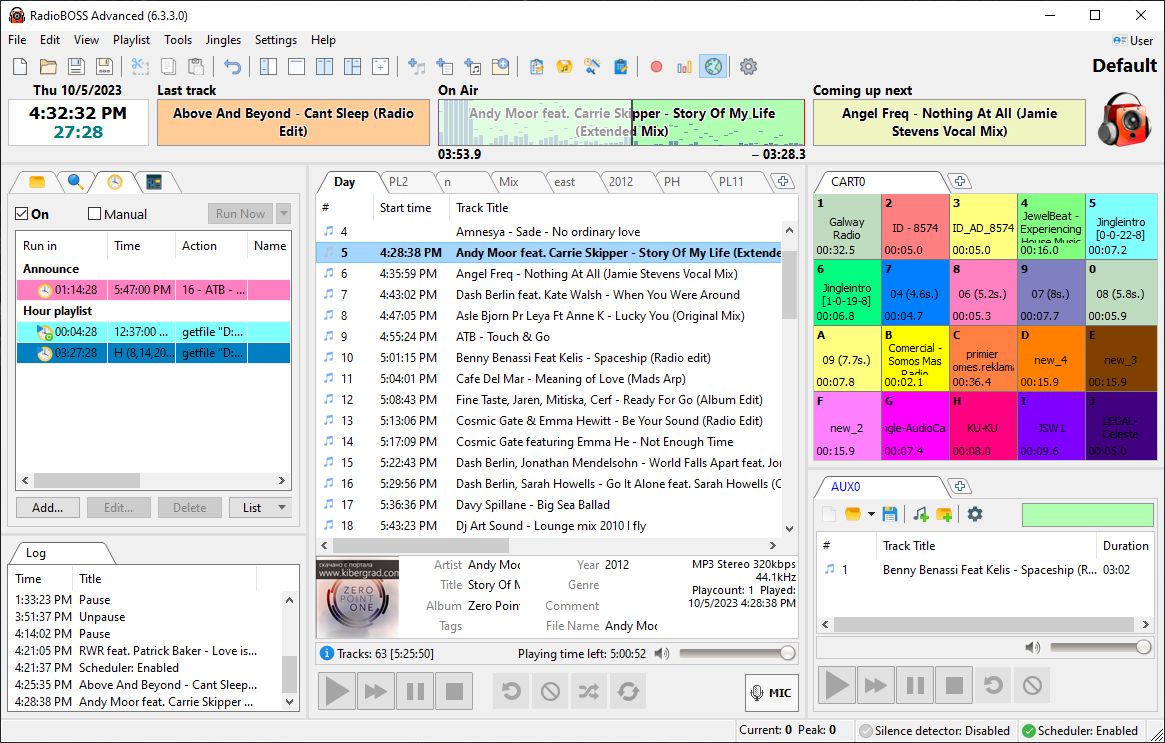
RadioBOSS is a professional paid automation software for internet radio and FM stations:
- works as an AutoDJ: plays music 24/7 without a host;
- supports playlists, scheduling, track rotation, jingles, ads;
- can stream directly to Shoutcast / Icecast;
- supports live input: microphone and line-in;
- includes audio processing (compressor, EQ, normalization);
- widely used by small and mid-size radio stations.
It is developed by DJSoft.Net and is often used as an “all-in-one” solution to launch a station without complicated server setup.
Supported operating systems
RadioBOSS works only on Windows.
Where to download RadioBOSS
It’s recommended to download RadioBOSS only from the official website to get an up-to-date and safe version:
Go to Download and choose the latest RadioBOSS version. To purchase, use Purchase .
Create a DJ user for live broadcasting
Log in to the Streaming.Center control panel and open the DJs section. By default, this section contains only AutoDJ, which is used for automated playback.
For live streaming, click Add DJ and create a new DJ user that will be used specifically for live broadcasts.
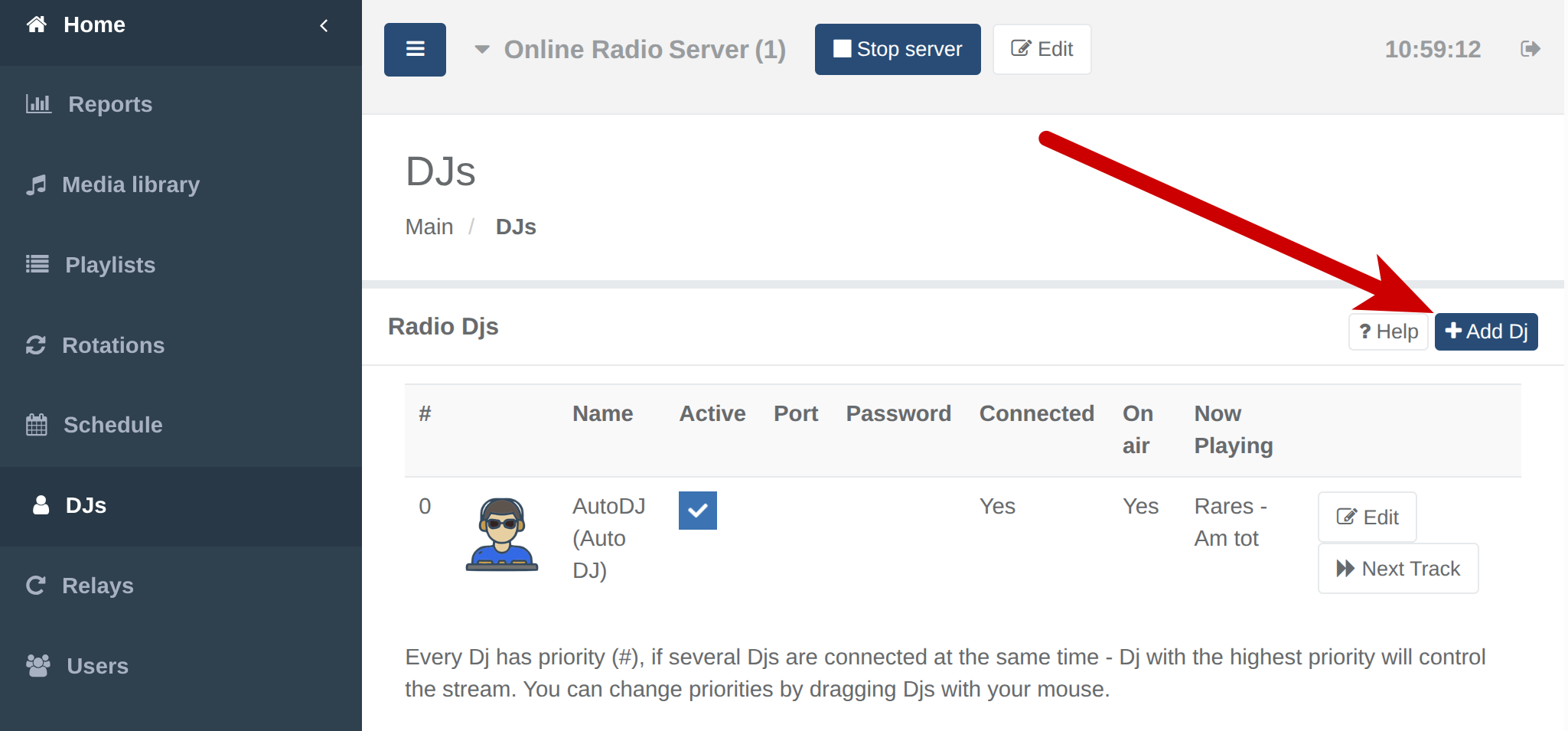
DJ settings during creation
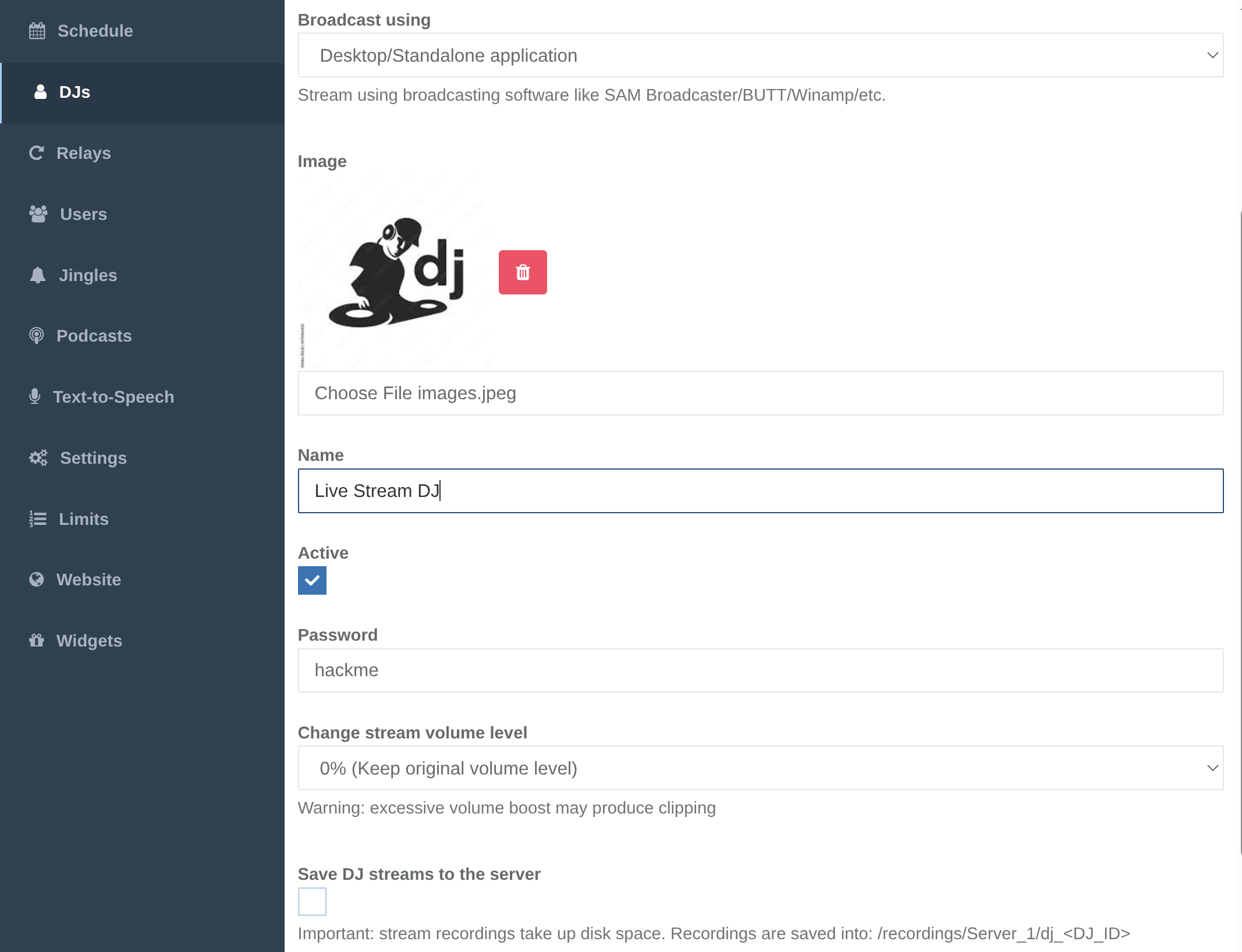
After clicking Add DJ, the DJ creation form will open. In this form you need to:
- select Desktop/Standalone application in the Broadcast using field;
- upload the DJ image;
- enter the DJ name;
- set a password — this password will be used in RadioBOSS settings.
After filling in all fields, click Add DJ. After the DJ is created, our platform will automatically assign a separate streaming port that will be used for the live stream.
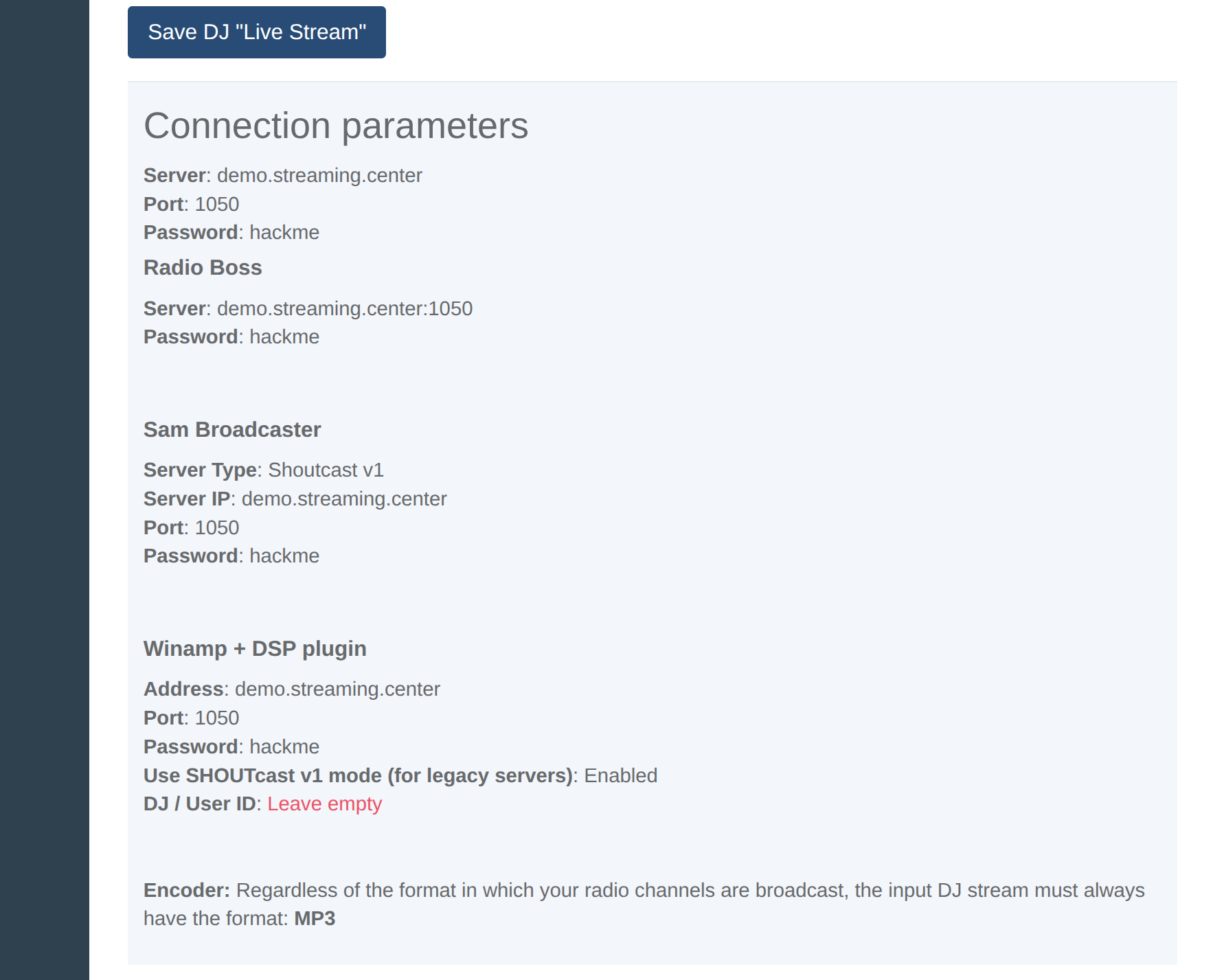
View the DJ connection parameters
After the DJ is created, it will appear in the list of DJs. Find your DJ and click Edit next to it.
The DJ settings page will open. In the Connection parameters section you’ll see the credentials for popular live streaming applications.
To connect from RadioBOSS you need three values:
- Server — the server address without
http://orhttps://(important — this is a very common mistake); - Streaming port — numeric value only;
- Password — the DJ password you set during creation.
Use these values when configuring RadioBOSS.
Add the station connection in RadioBOSS
-
Open RadioBOSS and in the top menu go to Settings:
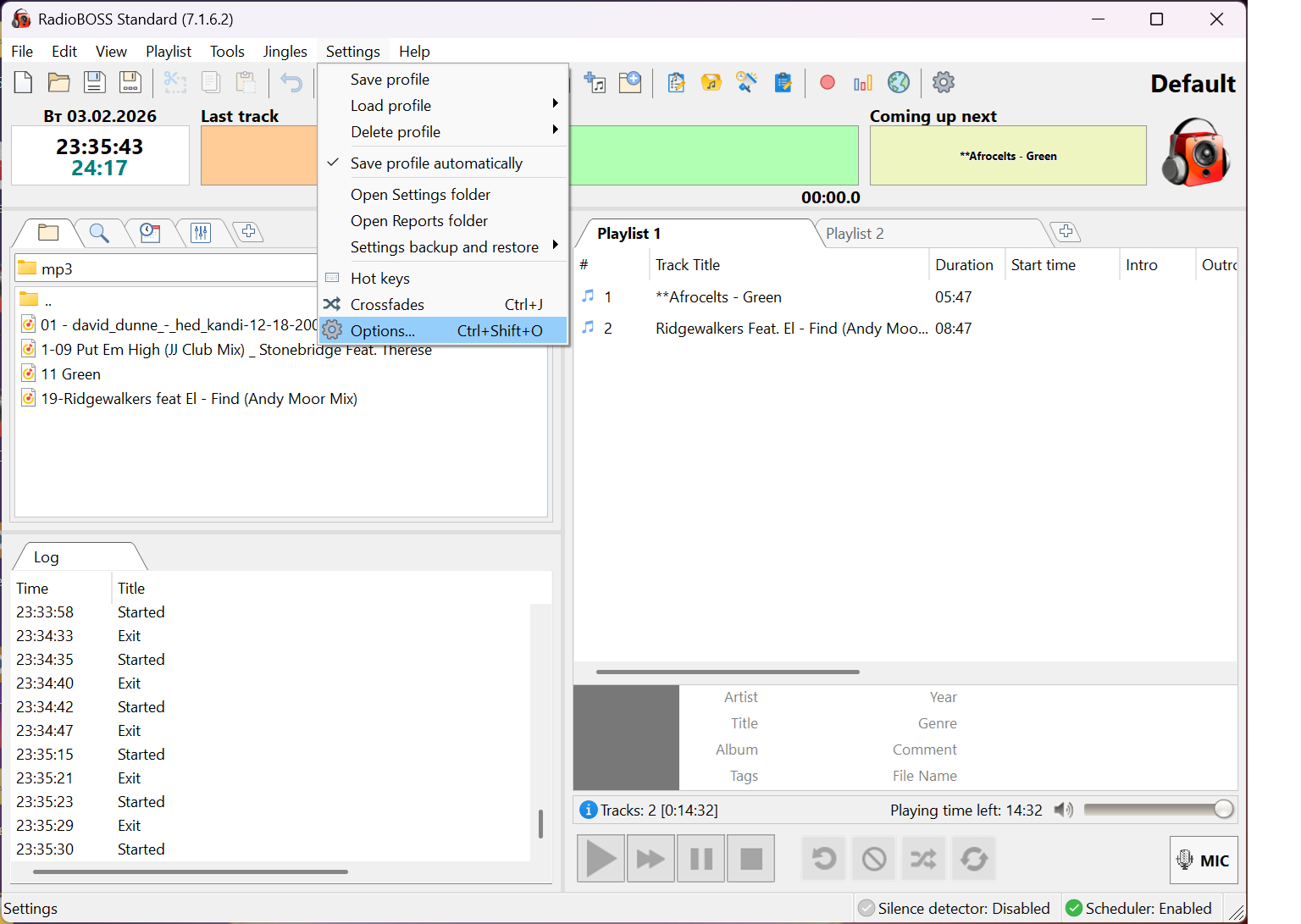
-
In the settings window, open Broadcast:
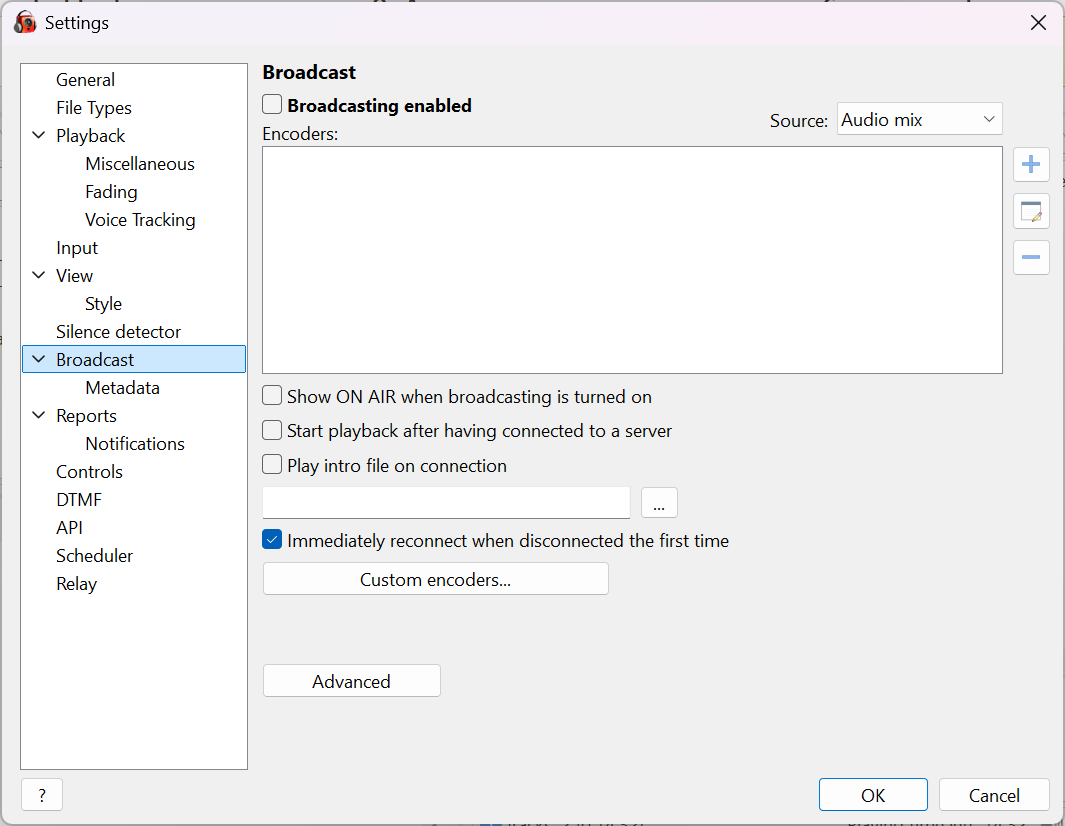
-
Next to Encoders, click the plus icon to add a new encoder:
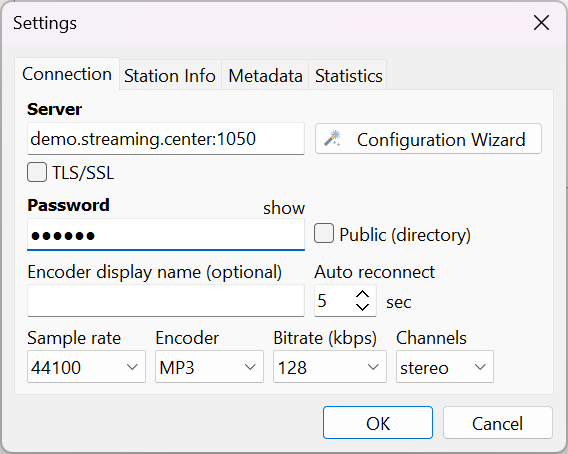
Fill in the Server and Password fields.
- Server — the server from our control panel (for example:
demo.streaming.center) withouthttp://orhttps://, then a colon and the port from the panel, e.g.demo.streaming.center:1050 - Password — the DJ password from the control panel (Connection parameters)
When both fields are filled correctly, click OK.
- Server — the server from our control panel (for example:
-
Back on the Broadcasting screen, enable Enable broadcasting, and also enable the encoder you just added. If everything is correct, you will see active in green next to the encoder — this means it is connected and streaming (you are live).
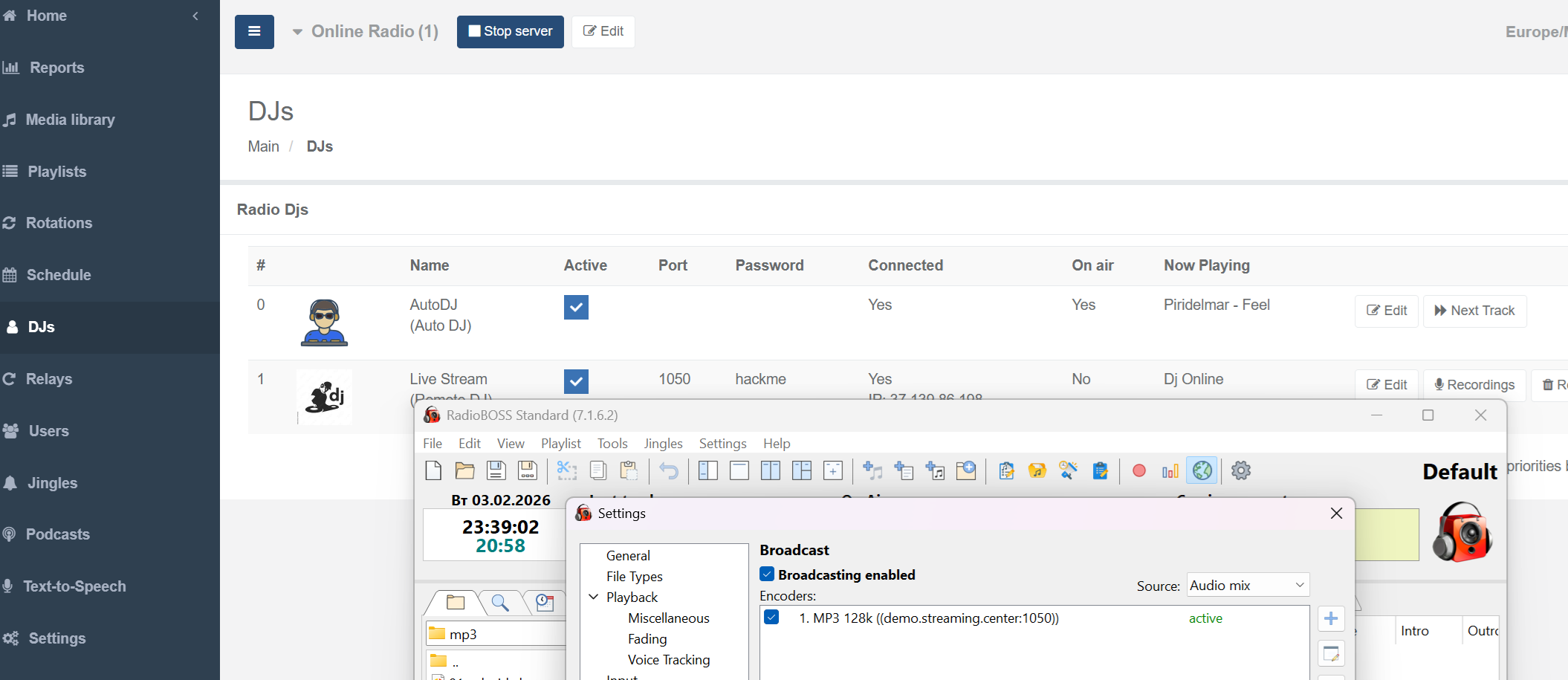
At the same time, refresh the DJs page in the control panel.
First, the DJ status will change to Connected: Yes, and after a short buffering period, On air will also become Yes. This means the DJ is connected and live streaming successfully.
Audio quality settings (recommended)
If needed, open Broadcasting in RadioBOSS again and set encoder parameters such as format, sample rate, and bitrate.
Because our radio platform automatically transcodes the incoming source into the required formats and bitrates configured in the control panel, we recommend setting the highest possible quality and bitrate in RadioBOSS. The streaming format is always MP3. This ensures the best audio quality for all streams available to listeners.
That’s it — RadioBOSS is one of the best and most popular applications for internet radio streaming. We recommend it!