



Uploading Audio Files via FTP Client
Our Streaming.Center Internet-radio Control Panel allows you to upload audio files (MP3, FLAC, AAC, and others) directly through the web interface in the Media Library section. However, it’s much more convenient, faster, and reliable to use a dedicated FTP client - especially when uploading large batches of files or high-quality albums.
Why Use an FTP Client?
- Fast bulk uploads: send hundreds of files at once.
- Full format support: MP3, FLAC, AAC: you can upload files with *.mp3, *.flac, *.aac, *.m4a extension.
- Greater stability: fewer errors compared to web-based uploads.
- Full control: easily manage your folder structure and files: quickly rename and move files and folders.
Download the FTP Client: FileZilla
One of the best free FTP clients is FileZilla.
It is:
- completely free and ad-free,
- fully supports Unicode and special characters in filenames,
- available for Windows, macOS, and Linux,
- equipped with an intuitive interface,
- ideal for managing and updating files on your radio.
👉 Download FileZilla from the official website: https://filezilla-project.org/
Please install FileZilla Client (not Server!). The program is only about 4 - 5 MB in size.
Installation and Launch
FileZilla installation is straightforward and requires no technical expertise.
Once installed, launch the program via the “FileZilla Client” shortcut on your desktop or in the Start menu.
Connecting to Your FTP Server
To connect, you’ll need three credentials, which you can find in your control panel:
- Host (server address)
- Username
- Password
💡 Where to find your credentials?
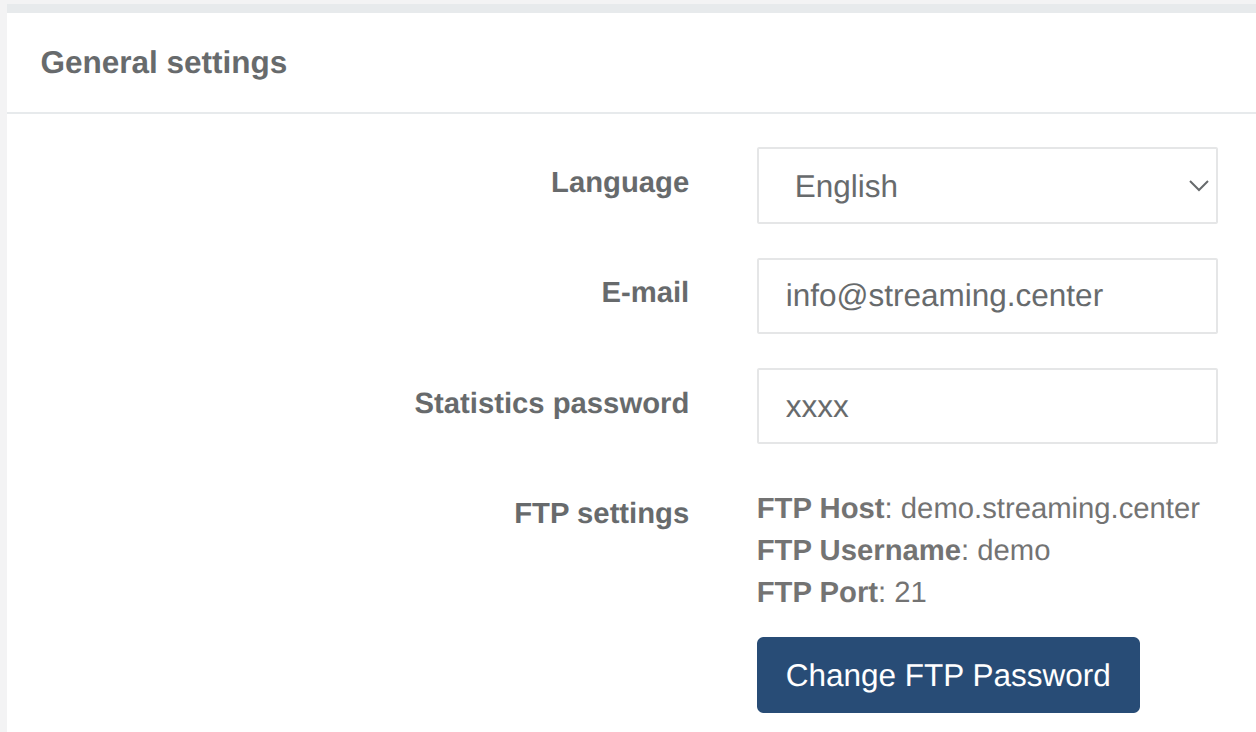
All FTP login details are available in the “Settings” section of your internet radio control panel. You can also change your password anytime there.
In FileZilla, enter these three values in the top toolbar and click “Quickconnect.”
Upon successful connection, the right panel will display the following server directories:
media/— main folder for music (used by Auto-DJ)jingles/— jingles and short station IDsintro/— intro trackshtdocs/— website files for your radio
How to Upload Audio Files
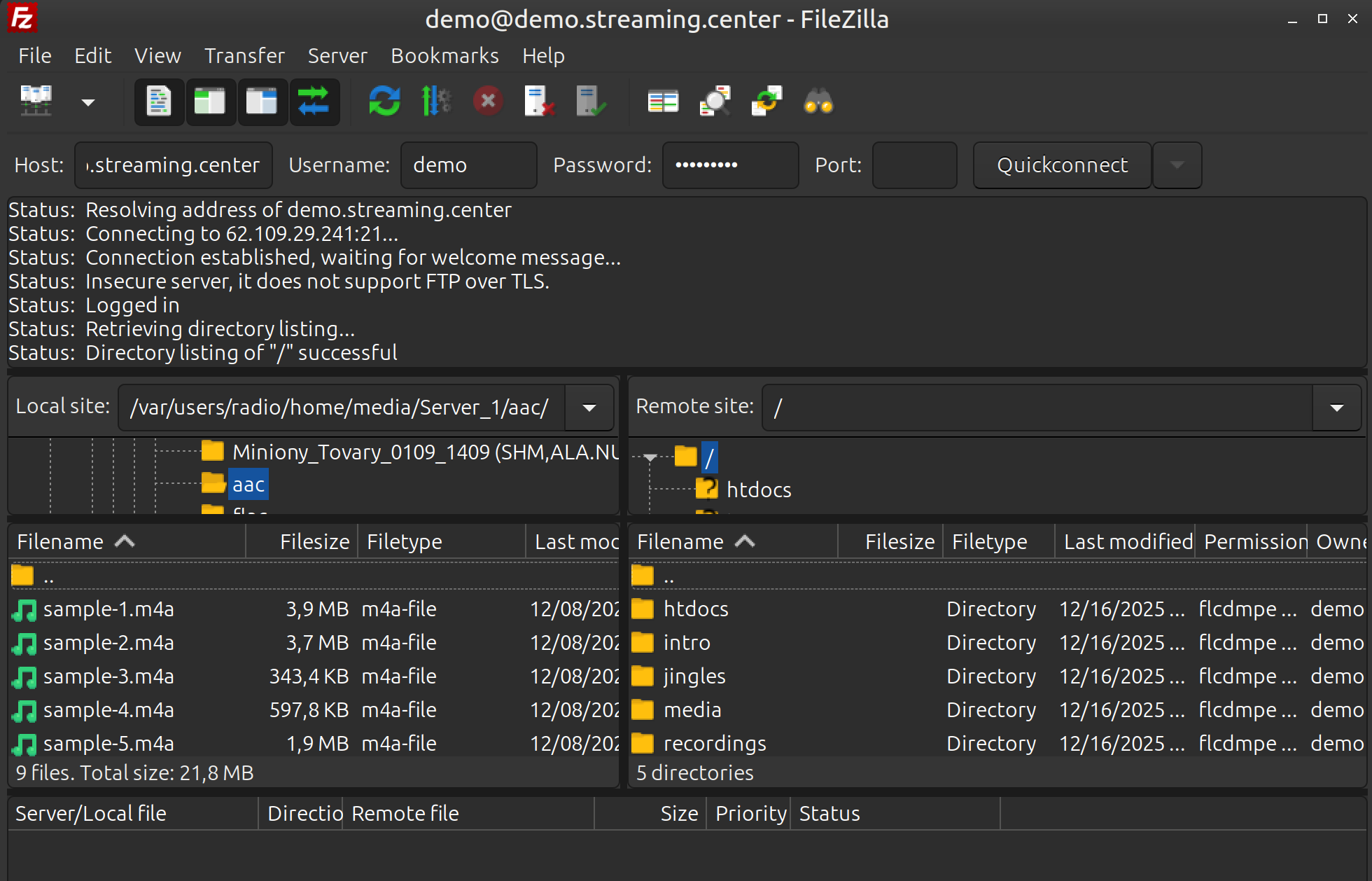
- In the right panel, navigate to:
media/Server_N, where N is your radio server number (typicallyServer_1for newly created stations). - In the left panel, locate the audio files on your computer (MP3, FLAC, AAC, etc.).
- Drag and drop the files into the right panel or double-click a file to start uploading.
- A progress bar (green) will appear at the bottom, showing upload status.
⏱️ Important!
The server automatically scans folders every few minutes. New tracks usually appear in the “Media Library” and “Playlists” section of your control panel within 5 minutes after upload. Once indexed, Auto-DJ can play them and you will be able to add them into your playlists.
Using FileZilla gives you a professional, efficient way to manage your station’s music library—quickly, reliably, and without limitations.